
Loading buyer guide
Hurry, don't miss savings on selected furniture & more.* Shop all offers
Choosing a drawing tablet is less about buying the biggest screen and more about matching pen support, app compatibility and budget. Here’s how to compare Tablets for sketching, note-making, illustration and portable art without overpaying for features you may not use.
Use our barcode scanner to match products instantly to find the best prices, find products with ease using our voice search and build wish lists and your favourites at the click of a button.
Tablet screen sizes compared: 8-inch, 10-inch or 12-inch?
Screen size changes how a tablet feels in your hand, how much storage matters, and whether paying extra for sharper resolution or more memory is worthwhile. Here’s how to compare 8-inch, 10-inch and 12-inch Tablets using retailer listings and catalogue specifications, without getting distracted by headline discounts alone.
Best Android tablets for everyday use
Everyday tablet shopping is less about chasing the highest specification and more about matching screen size, storage, RAM, software ecosystem and connectivity to how you actually use it. Here’s how to compare Android tablets and close alternatives in the Tablets range without overpaying for features you may not need.
Best tablets with a stylus
Stylus-friendly tablets can look similar on paper, but the buying decision often comes down to the pen itself: whether it is supported, included, comfortable to use and matched to the screen size you actually need.
New vs refurbished tablets: which is better value?
Refurbished tablets can be excellent value, but only when the condition, warranty information, storage and model age stack up against a strong new-tablet offer. The smartest choice is rarely just the lowest ticket price.
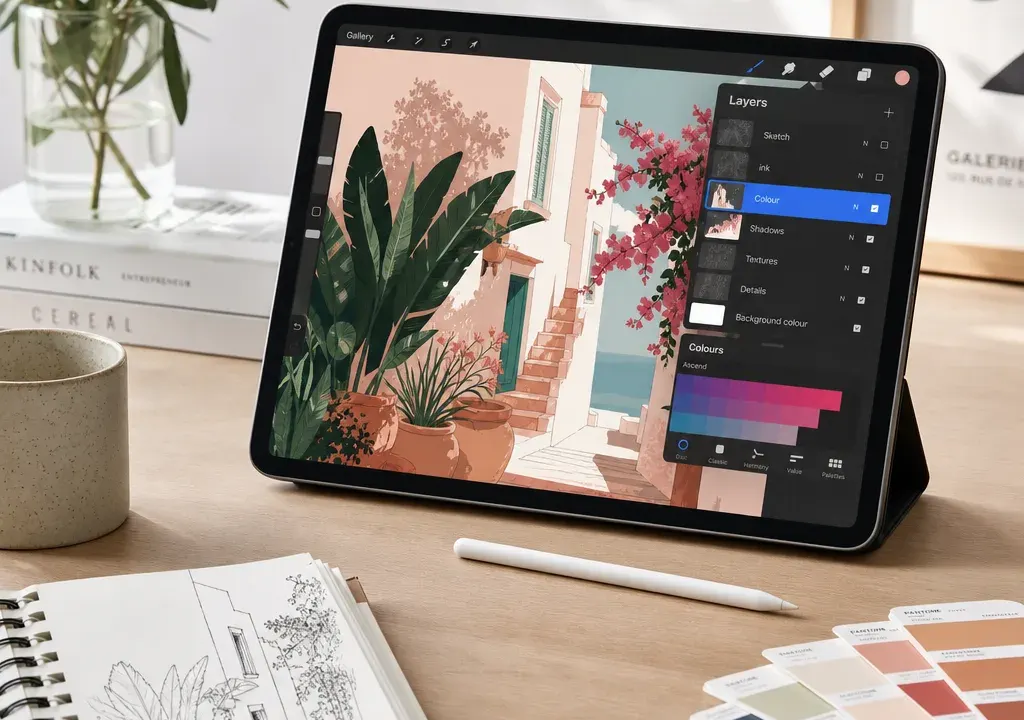
A tablet can be a brilliant way to draw, sketch, annotate, make comics or practise digital painting, but not every tablet is equally suited to art. Some are better for casual doodling and note-taking, while others are closer to a genuine Wacom alternative for portable illustration.
The biggest trap is assuming that any touchscreen tablet will feel good for drawing. For art, the listing needs to be checked for stylus compatibility, and ideally pressure-sensitive pen support. If that detail is not clearly listed, treat the tablet as a general entertainment or productivity device first, not a dedicated art tool.
The Tablets category currently includes compact 8-inch options, larger 10.9-inch and 11-inch models, and different storage capacities from 32GB to 256GB. That makes comparison worthwhile: the best choice depends on whether you want a low-cost sketchpad, a family tablet that can also handle drawing apps, or a more serious digital art setup.
For drawing, stylus support is the first filter. A cheap tablet can still be useful for browsing, streaming and kids’ apps, but if pressure-sensitive pen compatibility is not listed, it may not give you the control you expect for line weight, shading and brush dynamics.
Look for wording that confirms the type of stylus supported and whether pressure sensitivity is included. If a listing only says “touch tablet” or simply shows a touchscreen, that is not the same as pressure-sensitive pen support. For digital art, that distinction matters more than a small saving.
Among the current comparison candidates, many product titles focus on screen size, storage and connectivity rather than pen details. That does not mean they cannot be used with any stylus, but it does mean a buyer should verify pen compatibility on the product page before treating them as drawing-first tablets.
Screen size has a direct effect on drawing comfort. An 8-inch tablet is easy to carry and may suit quick sketches, reference images, simple colouring apps or children’s creative use. The Amazon Fire HD 8 options and the Samsung Galaxy Tab Active5 8.0 sit in this compact bracket based on their listed sizes.
For longer drawing sessions, a screen around 10.9 or 11 inches usually gives more room for toolbars, layers and gestures. Current examples include the Samsung Tab S10 FE listed at 10.9 inches and the Lenovo Tab M11 listed at 11 inches. These larger screens are worth considering if you plan to draw regularly rather than occasionally.
Bigger is not automatically better. If you mostly want a sofa tablet that can handle light sketching, compact models may be enough. If you want to work on character designs, digital painting or detailed line art, the extra space on a larger tablet is often the more comfortable choice.
Storage is easy to overlook, but art apps, brush packs, reference images, exported files and screen recordings can fill a tablet faster than casual browsing. A 32GB tablet may be fine for light use, but it leaves less headroom if the device will also be used for entertainment, schoolwork or family apps.
In the current catalogue context, the Amazon Fire HD 8 appears in 32GB and 64GB variants, while the Samsung Galaxy Tab A11 range includes 64GB and 128GB examples. The Lenovo Tab M11 is listed with 128GB, and the Samsung Galaxy Tab S10 Lite candidate is listed with 256GB. Those capacities create a useful ladder for comparison.
For digital art, 128GB is a sensible point to consider if the budget allows, especially for anyone who keeps lots of project files locally. If you are buying for basic sketching or a child’s first creative tablet, lower storage can still be workable, but compare the saving against how soon you may need more space.
The best tablet for drawing is partly the one that runs the apps you actually want. Before comparing offers, check whether your preferred drawing software is available on the operating system used by the tablet, and whether all the features you need work with the supported stylus.
Amazon Fire tablets can be attractive on price and are often popular for general family use, but app availability should be checked carefully if you have a specific drawing app in mind. Samsung and Lenovo Android tablets may suit buyers looking for a broader Android tablet experience, but again the exact model and pen support need confirming.
Do not buy purely on storage or discount if the app ecosystem is wrong for your workflow. A lower-priced tablet that cannot run your preferred art app or pen features may become a false economy.
A tablet can be a good Wacom alternative if you want a standalone screen you can draw on without connecting to a laptop or desktop. It is especially appealing for sketching on the sofa, taking a tablet to class, creating social content or making quick edits away from a desk.
However, a general tablet is not automatically equivalent to a dedicated pen display or graphics tablet. If pressure sensitivity, tilt recognition, shortcut controls or professional software support are essential, check the product listing and accessory compatibility very carefully.
For hobbyists and learners, a larger Android tablet with confirmed pen support may be a strong all-round choice. For casual doodling, a budget tablet plus a basic stylus may be enough. For professional illustration, the pen specification and app support should lead the decision, even if that narrows the field.
When comparing current offers, look at the full balance of price, storage, screen size and confirmed art features. A headline discount can be useful, but it should not outweigh missing pen information if drawing is your priority.
At the time of the catalogue comparison, the lowest-cost options among the supplied candidates are the Amazon Fire HD 8 models, including 32GB and 64GB versions. These may appeal to buyers wanting an affordable general tablet that can also be used for light creative apps, provided the app and stylus expectations are modest.
Mid-range candidates include models such as the Samsung Galaxy Tab A11 variants, Samsung Galaxy Tab A11+ options and the Lenovo Tab M11. These are worth comparing if you want a larger screen or more storage without moving straight to the highest-priced listings. Higher-capacity or more feature-led options in the data include the Samsung Galaxy Tab S10 Lite 256GB and Samsung Tab S10 FE 10.9-inch, but buyers should still verify the pen details before choosing them for serious drawing.
For a beginner or child, prioritise durability, price, storage and easy app access. A compact 8-inch tablet can be enough for colouring, tracing, basic sketching and learning digital tools, but pressure-sensitive drawing should not be assumed unless clearly listed.
For a student or hobby artist, start with 10.9-inch to 11-inch models and at least 128GB where possible. This gives more room for creative apps and multitasking. The Lenovo Tab M11 and Samsung Tab S10 FE style of listing are examples of the screen-size bracket to compare, while Samsung Galaxy Tab A11+ models may be worth checking for storage and connectivity options.
For a serious digital artist, ignore broad tablet bargains until stylus support is confirmed. Pressure sensitivity, low-lag pen input, display quality, app compatibility and accessory availability matter more than a large discount. If those details are absent from the listing, keep comparing Tablets until you find a model with clearer drawing credentials.
Most modern tablets have touchscreens, but that does not mean they all support the same stylus features. For drawing, check whether the listing confirms compatible pens and pressure-sensitive input rather than assuming any stylus will work well.
An 8-inch tablet can be fine for quick sketches, children’s drawing apps and light creative use. For detailed illustration or longer sessions, a 10.9-inch or 11-inch screen is usually more comfortable because there is more room for the canvas and toolbars.
For light sketching, 32GB or 64GB may be workable if you manage apps and files carefully. For regular digital art, 128GB or more is easier to live with, especially if you save lots of projects, references and exports on the device.
It can for some users, especially if you want a portable screen for sketching and general tablet use. For professional workflows, check pressure sensitivity, app support and pen features carefully, as dedicated drawing hardware may still suit some artists better.
Only if it still meets your drawing needs. A discounted tablet can be good value, but for digital art you should compare stylus support, screen size, storage and operating system before focusing on the saving.
The best Tablets for drawing are the ones that clearly match your art style, apps and budget. Start with pen compatibility, then compare screen size, storage and operating system. After that, current retailer offers become much easier to judge.
If the listing does not confirm pressure-sensitive stylus support, treat the tablet as a general-use option rather than a dedicated art device. For occasional sketching that may be perfectly fine; for digital painting, illustration or a Wacom alternative, it is worth being more selective.
